How can we help?

Find answers for DinkDigits on iPhone, iPad, and Apple Watch.

Browse by topic

iPhone and iPad

Start a game

Set up singles or doubles and choose how you’ll score.

  1. Open Play.
  2. Under Prepare for your watch, choose Singles or Doubles and set the scoring mode, target, and win-by option.
  3. Review the players and starting positions. Tap Start Game on Phone to score on that device.

See Play on Apple Watch if you want to keep score from your wrist.
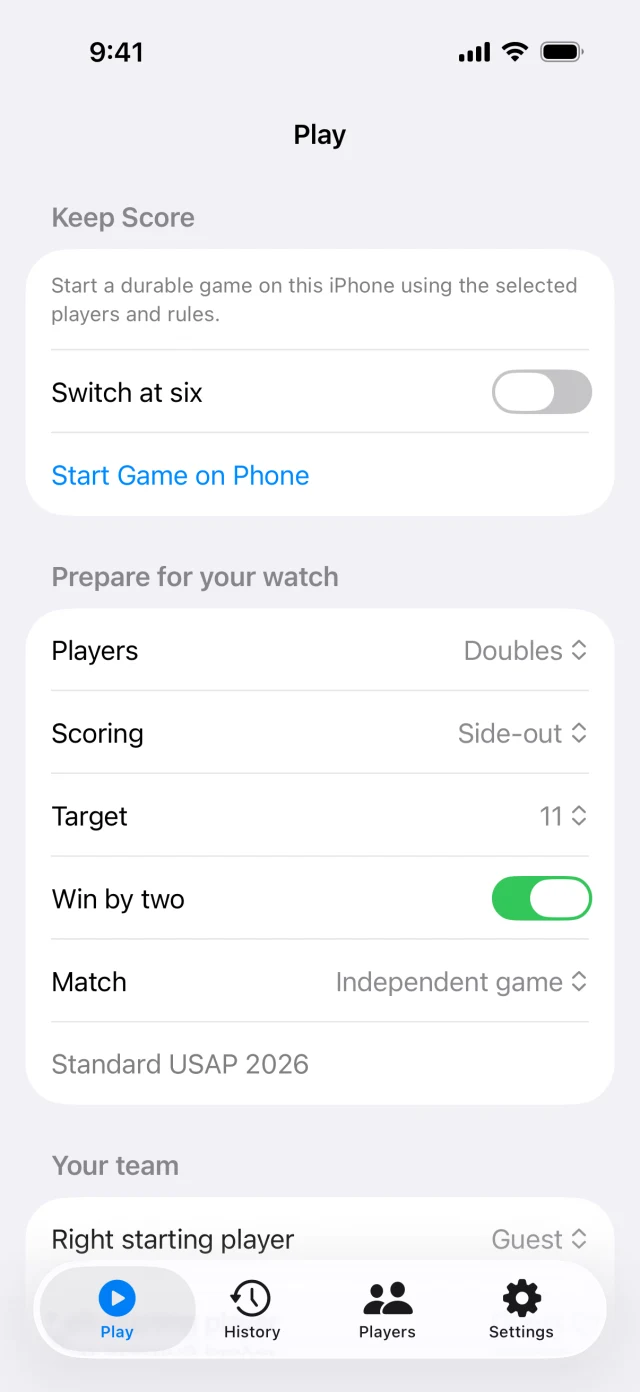
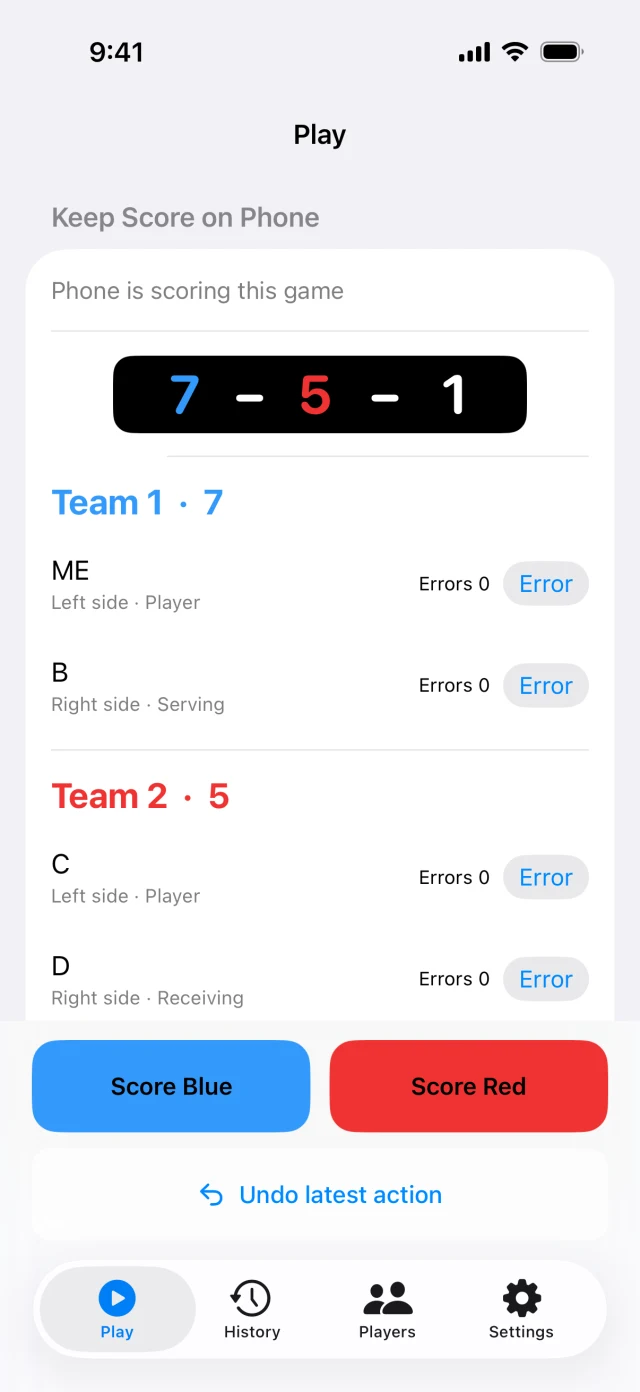
The Play tab shows Start Game on Phone and settings for players, scoring, target, and win by two.
Game setup on iPhone

iPhone and iPad

Keep score and undo

Record who won the rally or reverse a mistaken tap.

  1. Tap the scoring button for the team that won the rally. DinkDigits applies your scoring rules and updates the score call and serve order.
  2. To reverse the last scoring action, tap Undo latest action below the team buttons.
The score screen shows a 7–5–1 score call, Score Blue and Score Red buttons, and Undo latest action.
Scoring controls on iPhone

Apple Watch

Play on Apple Watch

Start a game from your wrist and see who serves next.

  1. Open DinkDigits on Apple Watch and start a new game. Review your team and opening position.
  2. Swipe up or down to record a rally for the team at that end of the court. Swipe left to undo the last action.
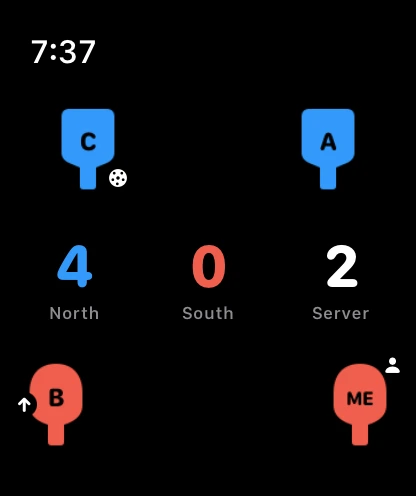
  3. On the court screen, the ball marks the current server. The score call in the middle shows the scores and, in side-out doubles, the server number.

You can keep score with or without recording a workout in Apple Health.

Four players surround a 4–0–2 score call. A small pickleball beside C marks the current server.
Court view on Apple Watch

Apple Watch

Correct a score on Apple Watch

Open the court menu to enter the correct score.

  1. Touch and hold the court during a game to open the game menu.
  2. Choose Correct score, enter the correct values, and confirm the change.
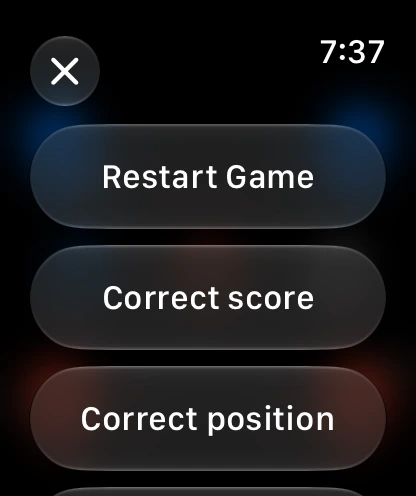
The Apple Watch game menu shows Restart Game, Correct score, and Correct position.
Game menu on Apple Watch

iPhone and iPad

Review and export game history

Find a past result or save eligible games as a CSV file.

  1. Open History and select a game to see its details.
  2. To save a copy, open Settings, choose History backup and transfer, then select Export game history CSV.
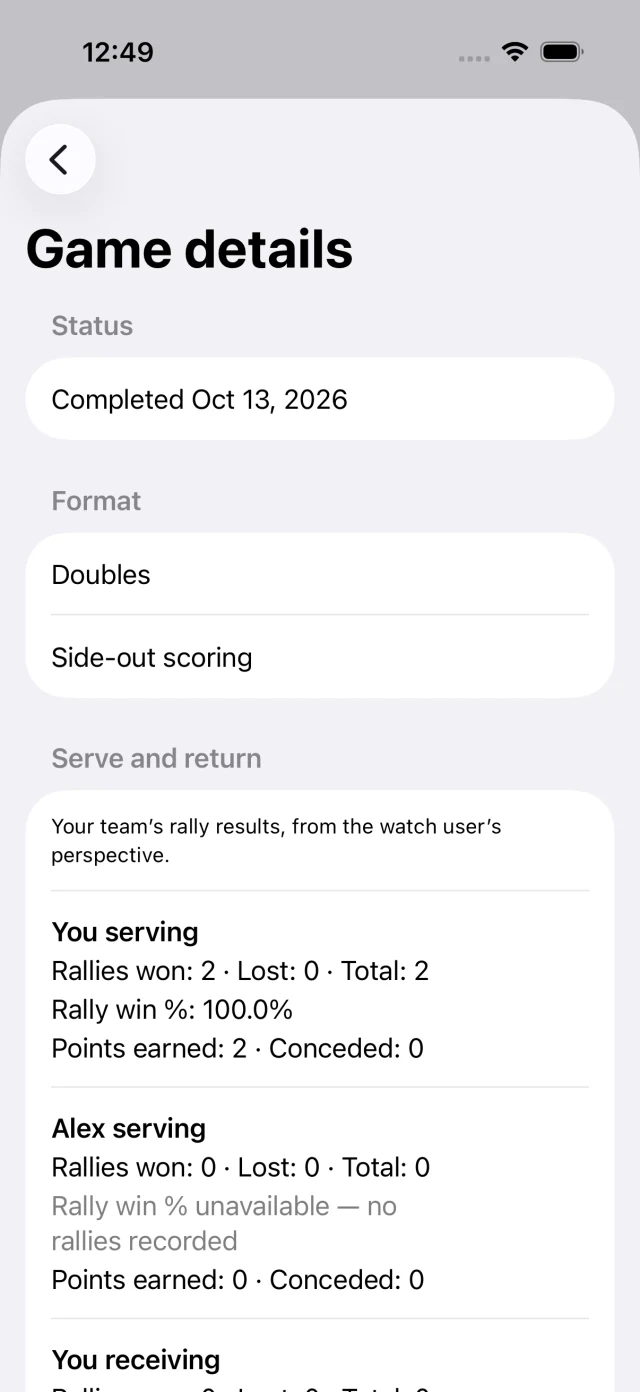
Game details shows the completion date, doubles and side-out scoring, and serve and return statistics.
Details for a completed game on iPhone

iPhone and iPad

Manage app data and backups

Find the controls for iCloud history backups and app data removal.

  • To back up or restore eligible history, open Settings, choose History backup and transfer, then tap Private iCloud history backup.
  • To remove app data, open Settings, choose Data & privacy, then tap Delete my app data.

See the privacy policy for what each option covers.

Still need help?

Email support@joycescript.com with your device model, app version, and what happened. Please leave out workout details and other sensitive information.